


Creator Communities
Today we're launching a new experimental feature on PromptBase: creator communities.
PromptBase is home to thousands of talented AI creators and a vibrant marketplace. However, until now, the website has been a bit of a lonely place. You can chat 1-on-1, but that's about it.
Now, we are introducing communities; live chat spaces where hundreds of AI creators like you can hang out and chat together. If you've ever used Discord - it's a bit like that.
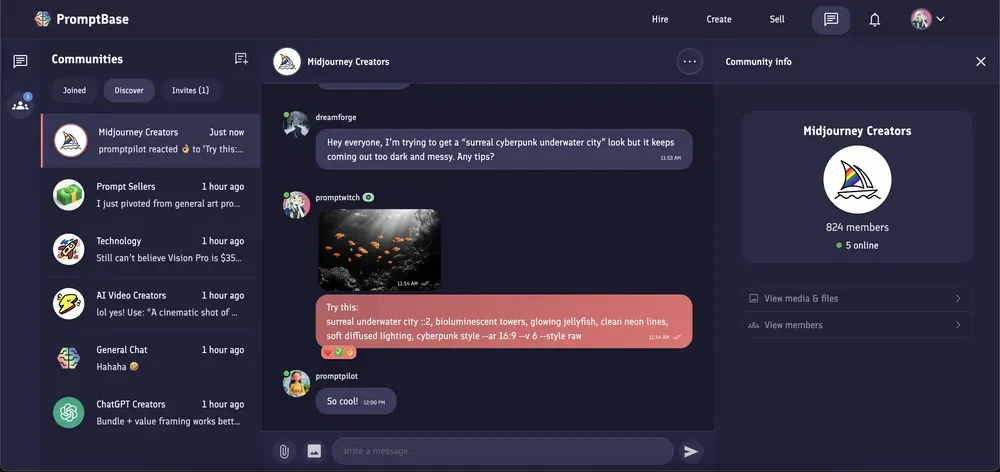
You can create a community for anything you like! Communities can be open to the public so anyone can join, or private so that only your closest pals with an invite are allowed in.
We're launching communities with some basic moderation tools, allowing you to set admins to keep your community healthy and ban anyone causing mischief.
Communities appear as a new tab on your chat page. You can start exploring communities other users have created by clicking the button below.
Joining a community
To join your first community, head over to the chat page on PromptBase and click the communities button on the side panel.
To discover new communities click the 'Discover' tab. Here you can browse communities created by other users. You can join a community by clicking the 'Join community' button.
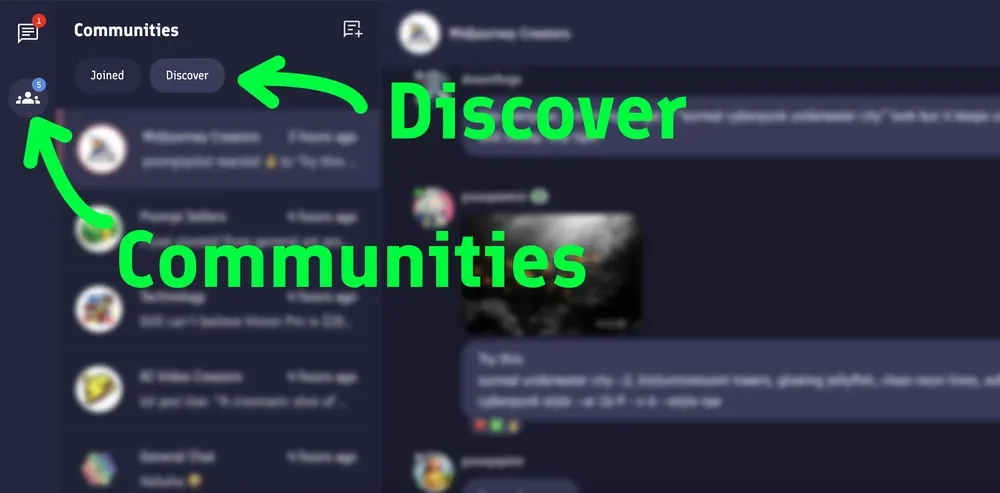
Now, you can message other users, and the community will appear in your 'Joined' tab so you can keep up to date.
Joining a private community
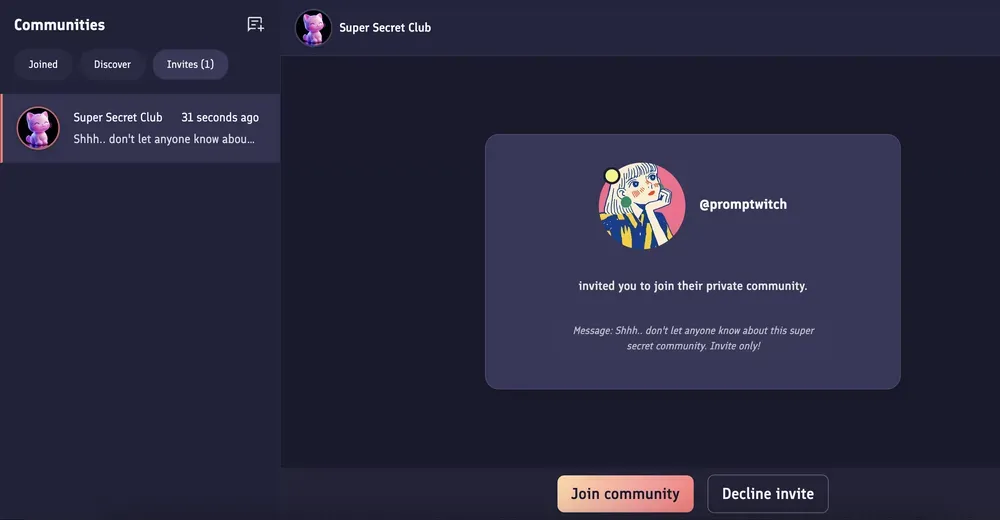
If you've been invited to a private community, you'll receive a notification in your 'invites' tab. Click this and you'll see the person who invited you, as well as a message from them. You can then decide to either accept the invitation and join the community, or decline it.
Creating a community
Currently to create a community on PromptBase you'll need to have at least 20 sales. We plan to remove this limit in the future.
To create a community, go to the communities tab, and click the new community button in the left side panel.
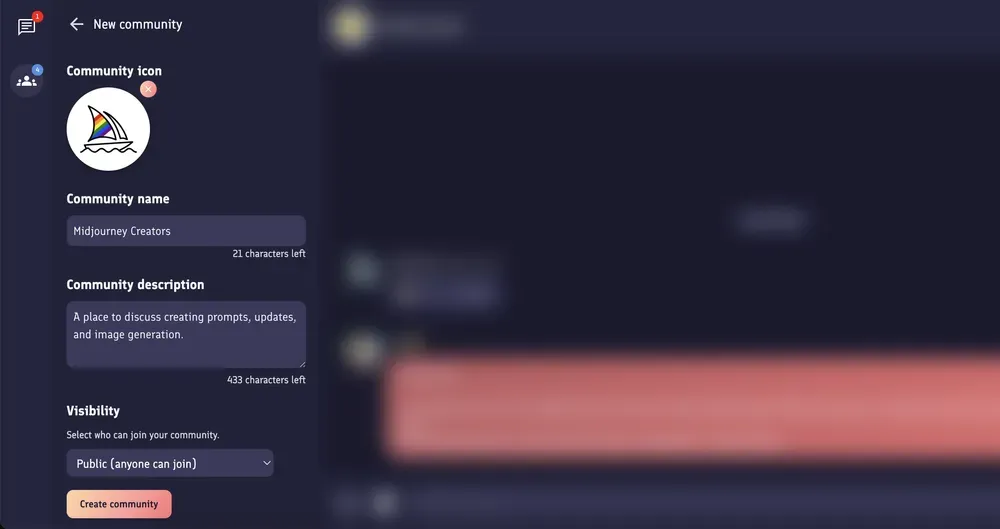
From here, enter some basic information about your community as well as deciding if you want to make it public or private. Click 'create community' and you're done!
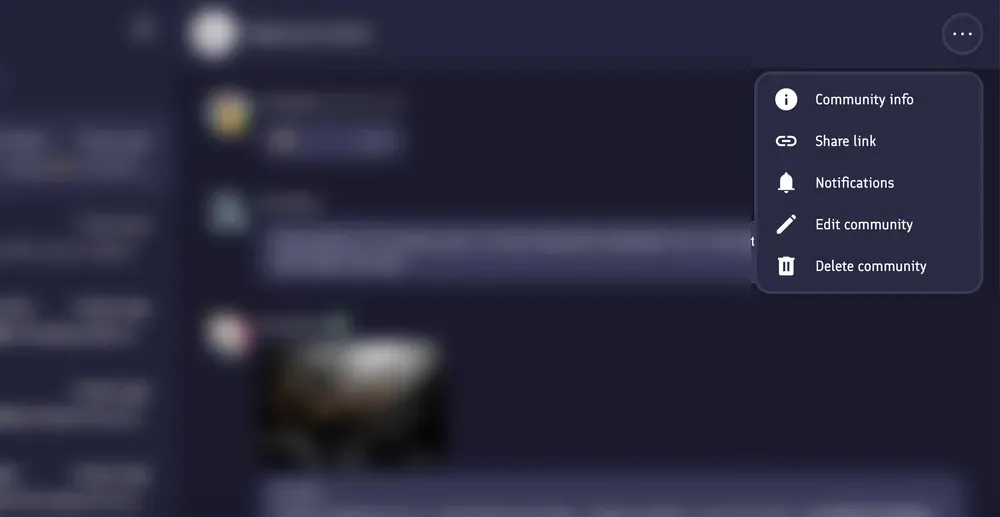
If you ever want to edit this information in the future, click the (...) settings menu icon at the top of the page and click 'Edit community'.
Inviting users to a public community
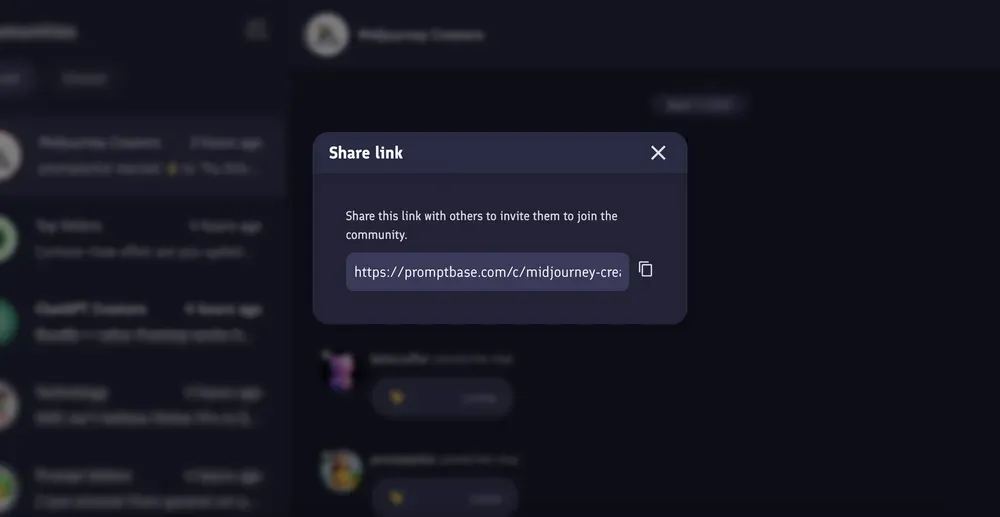
If your community is set to public it will appear in the 'Discover' communities tab. Anyone can join if they have the link to your community.
Community links have the following format: promptbase.com/c/communityname
You can get this link from your browser bar, or going to the (...) settings menu icon and clicking 'Share link'
Inviting users to a private community
Private communities do not show up in the Discover tab, and can only be joined via an invite.
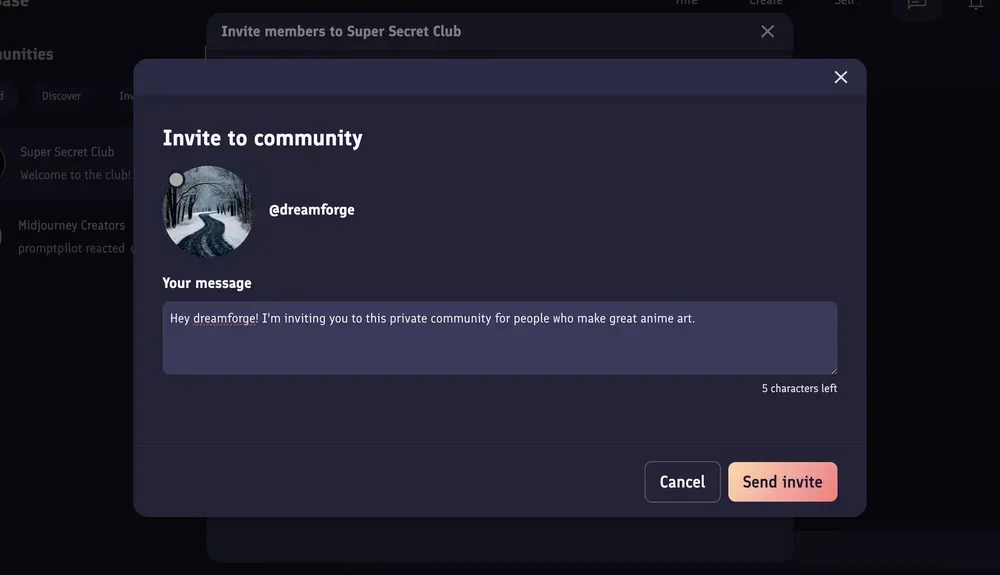
To invite someone to your private community, click the (...) settings menu icon and then click 'Invite users'. From here, enter the name of the user you'd like to invite, and then click 'Invite'.
Moderating your community
Community owners can set admins within their communities. The creator of a community is automatically an admin.
Admins can:
- Delete messages
- Ban/unban users
To set an admin in your community you can hover over the message of any user and click the edit user icon. From the menu that appears you can choose to make a user an admin. You can also edit a user from the members list found in your community info panel.
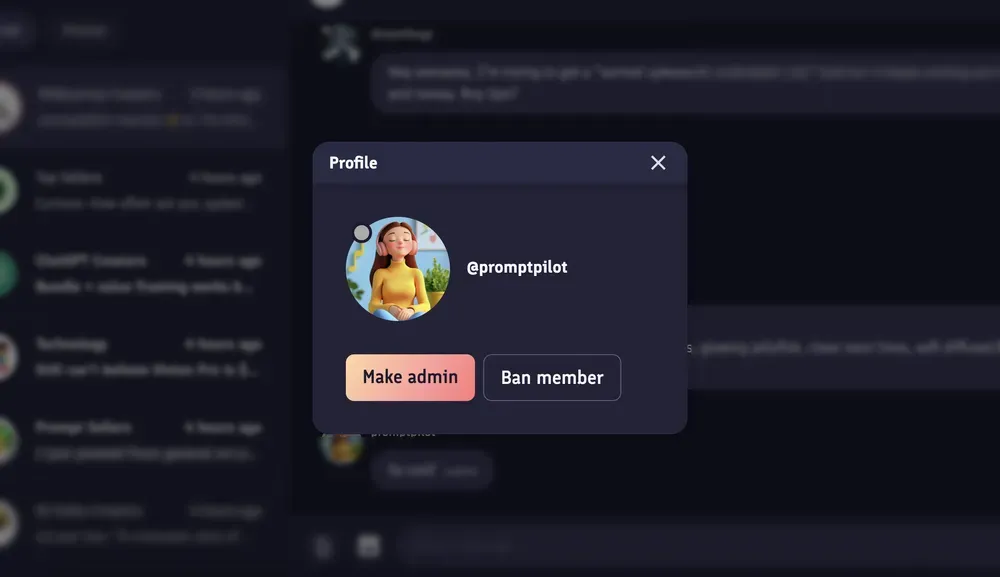
Banning a user will prevent a user from being able to send any messages within the community.
Auto-moderation
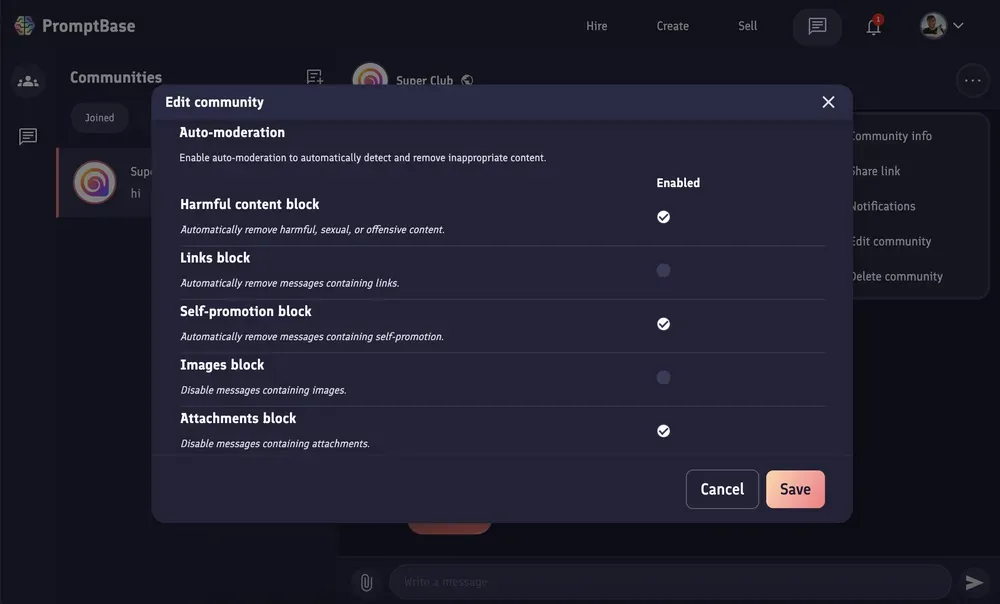
Comunity owners also have the ability to setup auto-moderation for their communities.
To enable auto-moderation, click the (...) settings menu icon and then click 'Edit community', and scroll down to the auto-moderation section.
Community notifications
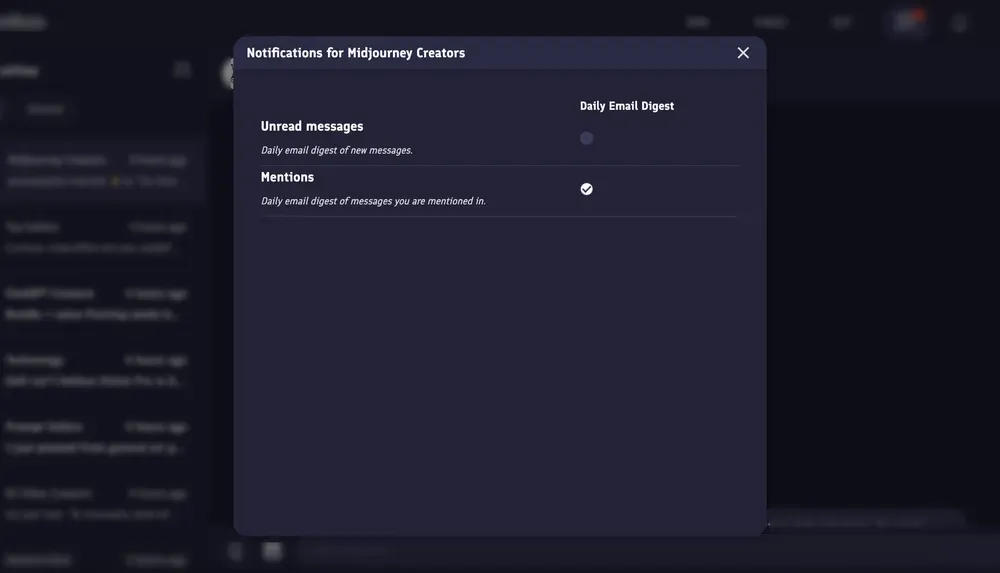
Notifications for communities work differently to regular chat messages. Instead of receiving emails about every unread message you receive, each day you'll receive a single email digest with topline information about unread messages and messages you were mentioned in for the communities you're a part of.
You can choose what notifications you'd like to receive in your digest by going to the notifications menu for each community you're a part of. You can do this by clicking the (...) settings menu and clicking 'Notification settings'.
You can also completely disable email digests from your account notification settings.
Conclusions and the future of communities
Thanks for making it to the end of this blog post and learning about our new creator communities feature!
Creator communities are an exciting new way to connect with other AI creators on PromptBase, and we're excited to see what communities you create.
If you have any feedback, questions or suggestions about this feature, please don't hesitate to reach out via the email on our contact page, or send a message to @ben.