

Skill Details
Runtime
(gpt-5.5)
Example user message
[userMessage]: Create a Notion template product for a freelance social media manager. It should include content calendar, client tracker, ideas bank, campaign tracker, weekly review, and a usage guide. I need product name options, structure, listing copy, setup instructions, FAQ, README, and preview image brief.
Example agent response
# Notion Template Product Package: Freelance Social Media Manager Dashboard
## Product Concept Summary
This Notion template is a practical workspace for freelance social media managers who need to organize content ideas, client work, campaign deadlines, weekly priorities, and publishing schedules in one place. It is designed as a simple operating dashboard rather than an overcomplicated agency system.
## Target Buyer
Freelance social media managers, content creators, virtual assistants, and small agency owners who manage multiple clients and need a clean system for planning, tracking, and reviewing content work.
## Positioning Angle
A clean, client-friendly Notion dashboard for managing social content workflows, campaign tasks, and weekly priorities without juggling scattered notes, spreadsheets, and separate calendars.
## Template Name Options
1. Freelance Social Media Manager Dashboard
2. Social Media Client Planner
3. Content Manager Notion Dashboard
4. Social Media Workflow Hub
5. Client Content Calendar System
6. Freelance Content Operations Dashboard
7. Social Media Campaign Planner
8. Creator Client Management Dashboard
9. Content Calendar and Client Tracker
10. Social Media Project Control Centre
## Recommended Final Product Name
Freelance Social Media Manager Dashboard
## Product Slug
freelance-social-media-manager-dashboard
## Template Structure
- Home Dashboard
- Quick Start Guide
- Content Calendar
- Client Tracker
- Ideas Bank
- Campaign Tracker
- Weekly Review
- Asset Library
- Archive
## Page and Database Map
| Page / Database | Purpose | Suggested Properties | Suggested Views | Buyer Use Case |
|---|---|---|---|---|
| Home Dashboard | Central navigation and weekly focus | Current week, priority links, quick actions | Dashboard view | Start each work session |
| Content Calendar | Plan and schedule content | Title, client, platform, status, date, content type, link, notes | Calendar, board by status, table | Manage posts across clients |
| Client Tracker | Store client details and priorities | Client name, contact, package, platforms, status, notes, links | Table, active clients | Track client accounts |
| Ideas Bank | Capture content ideas | Idea, client, topic, platform, priority, status | Board by topic, table | Store and reuse content ideas |
| Campaign Tracker | Manage campaign work | Campaign, client, start date, end date, status, tasks, assets | Timeline, board | Track larger campaigns |
| Weekly Review | Review progress and plan next week | Week, wins, blockers, priorities, notes | Table, weekly page | Reflect and plan |
| Asset Library | Store links to creative assets | Asset name, client, type, URL, status | Gallery, table | Find assets quickly |
| Archive | Store completed work | Item, date, client, type | Table | Keep dashboard tidy |
## Buyer Workflow
1. Duplicate the Notion template into your workspace.
2. Open the Quick Start Guide.
3. Add your active clients to the Client Tracker.
4. Add upcoming posts to the Content Calendar.
5. Capture new ideas in the Ideas Bank.
6. Use the Campaign Tracker for launches and larger client campaigns.
7. Complete the Weekly Review at the end of each week.
8. Archive completed items monthly.
## Setup Instructions
1. Open the access PDF or product file after purchase.
2. Click the Notion template link.
3. Log in to Notion or create a free Notion account.
4. Click “Duplicate” to copy the template into your workspace.
5. Choose the workspace where you want the template to live.
6. Rename the dashboard if desired.
7. Open the Quick Start Guide before editing databases.
8. Replace sample entries with your own clients, content, and campaigns.
## Usage Guide
Start from the Home Dashboard each day. Use the Client Tracker as your source of truth for active clients. Add post ideas to the Ideas Bank before scheduling them in the Content Calendar. Use the Campaign Tracker when a project has multiple deliverables or a launch timeline. At the end of each week, complete the Weekly Review to capture wins, blockers, and next-week priorities.
## Product Listing Title
Freelance Social Media Manager Dashboard — Notion Client, Content & Campaign Planner
## Product Listing Description
Organize your freelance social media workflow in one clean Notion dashboard. This template helps you track clients, plan posts, manage campaigns, capture content ideas, review your week, and keep useful asset links in one place.
Designed for freelance social media managers, virtual assistants, content creators, and small agencies, the dashboard gives you a simple structure for managing client content without switching between scattered notes and spreadsheets.
This is a digital Notion template. No physical item will be shipped. A Notion account is required to use the template.
## What’s Included
- Home Dashboard
- Quick Start Guide
- Content Calendar
- Client Tracker
- Ideas Bank
- Campaign Tracker
- Weekly Review
- Asset Library
- Archive
- Setup and usage instructions
## FAQ Section
Q: What do I receive?
A: You receive access to a Notion template dashboard with pages and databases for content planning, client tracking, campaign management, ideas, assets, weekly review, and archive.
Q: Is this a physical product?
A: No. This is a digital Notion template. No physical item will be shipped.
Q: Do I need a Notion account?
A: Yes. You need a Notion account to duplicate and use the template.
Q: Is this beginner-friendly?
A: Yes. A Quick Start Guide and setup instructions are included to help you begin using the dashboard.
Q: Can I customize the template?
A: Yes. You can rename pages, edit properties, add views, and adjust categories to fit your workflow.
Q: Does this guarantee I will get more clients or grow my business?
A: No. The template is designed to help with organization and workflow clarity, but it does not guarantee clients, sales, income, or business growth.
Q: Can I resell the template?
A: Resale terms depend on the included licence. Licence terms: [insert confirmed licence terms].
Q: What if the Notion link does not work?
A: Contact [support link] with your order email, product name, and a screenshot of the issue.
## README / Access Guide Copy
Thank you for purchasing Freelance Social Media Manager Dashboard.
This is a digital Notion template. No physical item will be shipped.
### How to access your template
1. Open this access guide.
2. Click the Notion template link: [insert template link].
3. Log in to Notion or create a Notion account.
4. Click “Duplicate.”
5. Choose your workspace.
6. Open the Quick Start Guide inside the template.
### Before editing
Review the sample entries, then replace them with your own clients, content ideas, campaign dates, and asset links. Avoid deleting database properties until you understand how the views are connected.
### Support
If the template link does not work, contact [support link] with your order email, product name, and a screenshot of the issue.
Licence terms: [insert confirmed licence terms].
## Preview Image Brief
1. Cover preview: clean dashboard hero screen with product name and mock Notion layout.
2. Dashboard preview: Home Dashboard with navigation tiles and weekly focus area.
3. Content Calendar preview: calendar and status board views with sample content entries.
4. Client Tracker preview: client database with sample, non-private client names.
5. Campaign Tracker preview: timeline or board view showing campaign stages.
6. Ideas Bank preview: organized idea board by platform or topic.
7. What’s Included preview: list of pages/databases included.
8. Setup preview: 3-step “duplicate, customize, plan” instruction graphic.
## Risk and Claims Notes
- Do not claim the template guarantees clients, income, growth, or productivity.
- Use sample data only in previews.
- Confirm licence and support terms before publishing.
- Do not include real client information in screenshots.
- Make the Notion account requirement visible before purchase.
## Final Publishing Checklist
- Product name is clear.
- Notion account requirement is stated.
- No physical item wording is included.
- Template pages and databases are listed.
- Setup instructions are included.
- README/access guide is ready.
- FAQ section is included.
- Licence/support placeholders are completed.
- Preview images use sample data only.
- No guaranteed outcome claims are used.
## Disclaimer
This Notion template product package is designed for product planning, template structure, buyer instructions, listing copy, and marketplace presentation support. It does not guarantee sales, downloads, rankings, buyer satisfaction, marketplace approval, productivity results, business outcomes, financial results, grades, health outcomes, or commercial performance. Licence terms, refund terms, support promises, consumer protection rules, platform policies, commercial-use rights, privacy issues, and regulated-topic claims should be checked before publishing.


Or get it with Select10 Select prompts/mo — under $2 each
Learn more
 Instant access
 Commercial use
 Money‑back
By purchasing this skill, you agree to our terms of service
5.0
1 review
2
Favorites
38
Views
GPT-5.5


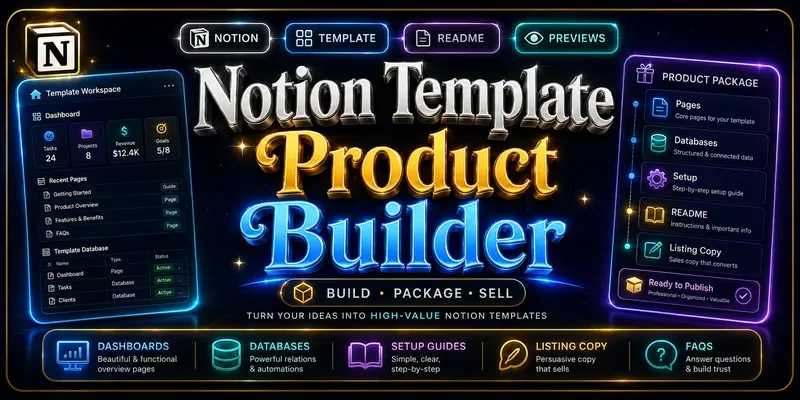
Creates Notion template product concepts, page structures, database ideas, product positioning, listing copy, usage guides, setup instructions, onboarding notes, FAQs, licence notes, preview-image briefs, and launch-ready product copy for Notion template sellers and digital product creators.
...more
Added 3 weeks ago

- Reviews for this skill (1)